Introduction
Half the pages on this site start the same way: create an Ubuntu machine.
They cannot start any other way.
You are not going to install a firewall, break a filesystem or open port 22 to the world on the laptop you take notes with.
You need a machine you can ruin.
IsardVDI is where you get one.
It is the virtualization platform the Generalitat runs for its schools, and it gives you virtual desktops: Linux or Windows machines that run in a data center in Catalonia and that you use from your own computer.
You have it here:
elmeuescriptori.gestioeducativa.gencat.cat
This page is the one you were sent to.
By the end of it you have a machine running, and you know how to turn it off — which matters more than it sounds, because a machine you forget about is a machine somebody else cannot have.
The platform
Open the URL and you land on the login screen.

Press the Gencat button — not the local one.
That takes you to the Generalitat's identity provider, which is the same one you already use for other things.

Sign in with your identifier ending in @edu.gencat.cat.
If the password is refused and you are sure it is right, it is almost always one of two things: you typed the local part without @edu.gencat.cat, or the account was created and never activated.
Neither is something you can fix from here — it is a ticket to the school's IT coordinator.
Your first desktop
Once inside, you are in the Desktops view.
The first time, it is empty.
Press the New desktop button.

Three things go in the form:
| Name | what you will call the machine. web-1, firewall, ubuntu-test |
| Description | optional, and worth writing when you have eight of them |
| Template | the operating system it starts from |
The template is the one that matters.
A template is a machine somebody else installed, configured and froze.
Picking Ubuntu 24.04 Server does not install Ubuntu — it copies a disk on which Ubuntu is already installed, which is why the desktop is ready in seconds rather than in twenty minutes.
You can read which one you got later, from inside the machine:
$ cat /etc/os-release
PRETTY_NAME="Ubuntu 24.04.2 LTS"
NAME="Ubuntu"
VERSION_ID="24.04"
VERSION_CODENAME=noble
ID=ubuntu
Worth doing the first time a tutorial does not work: Ubuntu is four different things, and 24.04 is not 22.04.
Press Create.
The desktop appears in the list, stopped.
Start it
Press the play button on the row.
The state goes to Starting, and a few seconds later to Started.
Watch the IP column while it does.
It stays empty for a while and then fills in with something like 192.168.122.214 — a private address on Isard's own network, not one you can reach from here yet.
Open the viewer, log in, and the machine will tell you the same thing:
$ hostnamectl
 Static hostname: dev
       Icon name: computer-vm
         Chassis: vm
  Virtualization: kvm
Operating System: Ubuntu 24.04.2 LTS
          Kernel: Linux 6.8.0-51-generic
    Architecture: x86-64
Virtualization: kvm is worth a second look.
There is no hardware here. The machine is a process on a server somewhere in Catalonia, and everything it thinks it has — the disk, the network card, the screen you are looking at — is software pretending.
$ ip --brief addr
lo      UNKNOWN  127.0.0.1/8 ::1/128
enp1s0  UP       192.168.122.214/22 fe80::cc46:102:1f0f:c495/64
One interface, one private address, and the same number the platform showed you.
The viewer
A desktop with no screen is not much use.
Press the viewer button on the row and Isard offers you two ways to see it.
The browser viewer
The first one runs in a tab.
Nothing to install, works on any machine, and it is the right choice when you are on somebody else's computer.
It is also the slower of the two: every frame travels as pixels through the browser, so a window drag is visibly behind your hand.
remote-viewer
The second one is a real application on your machine that speaks SPICE, the protocol Isard uses underneath.
It is noticeably smoother, it resizes the guest with the window, and it shares your clipboard.
Install it with Scoop:
> scoop bucket add extras
> scoop install extras/virt-viewer
On the platform, choosing that viewer downloads a small file — isard-spice.vv — with the connection data inside it.
It is worth opening once in a text editor, because it explains what is going on:
[virt-viewer]
type=spice
host=elmeuescriptori.gestioeducativa.gencat.cat
port=
tls-port=443
password=eDsK4mQ2vN
delete-this-file=1
A host, a port and a one-time password.
That is the whole file: it is a ticket, not a program.
Open it:
> remote-viewer.exe .\isard-spice.vv
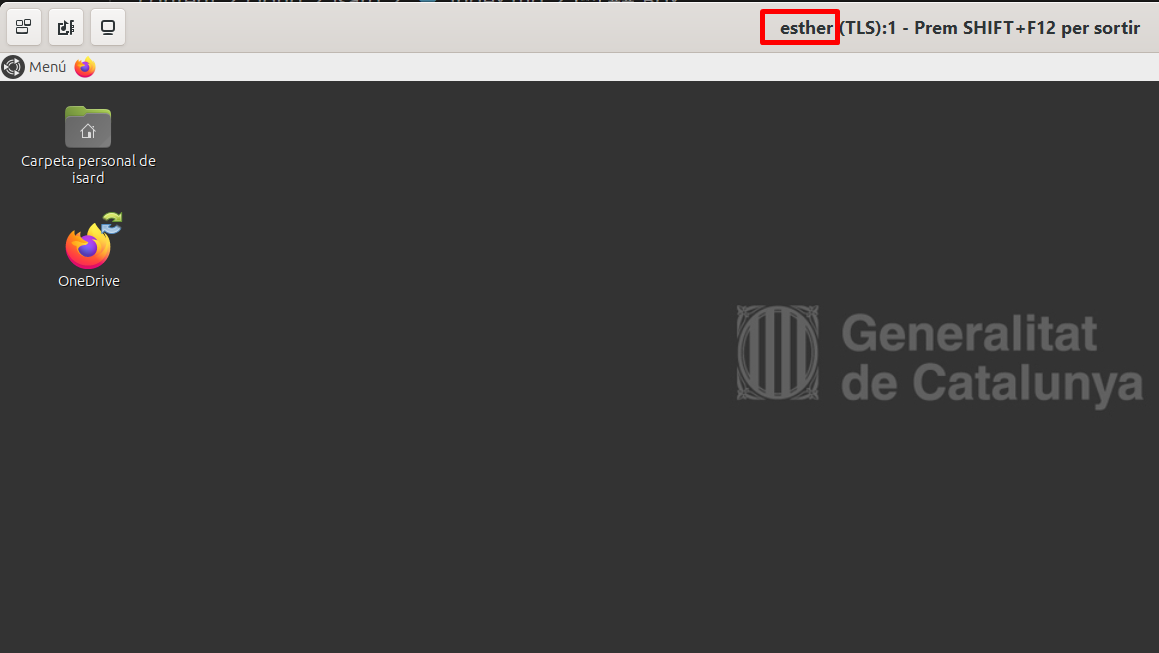
The file is single-use and short-lived: it carries a ticket that Isard invalidates once you connect.
Download a new one each time.
TaskGet a machine
Create an Ubuntu 24.04 Server desktop called dev, start it, and open it with a viewer.
Show the solution
New desktop → name dev → pick an Ubuntu 24.04 Server template → Create.
Then the play button, and the viewer button once the state says Started.
If you get a login prompt and no desktop, that is correct: a Server template has no graphical environment. There is nothing missing.
What is inside the form
Everything above is the short path.
Open Advanced options on the create form and you get the machine's actual shape.
CPU and memory
Two vCPU and 4 GB of RAM is the default, and it is enough for almost everything on this site.
Those two numbers are the ones the machine reports back:
$ nproc
2
$ free -h
               total        used        free      shared  buff/cache   available
Mem:           3.8Gi       412Mi       2.9Gi       1.0Mi       598Mi       3.2Gi
Swap:             0B          0B          0B
3.8Gi rather than 4.0, because some of it is the kernel's before you get any.
It is also the number that matters when a piece of software says it needs 4 GB: it needs 4 GB available, and you have 3.2.
It is not enough for three things, and they are worth knowing before you waste an afternoon:
- a Kubernetes node wants 4 CPU and 8 GB before it will even come up;
- a language model wants whatever the model weighs, plus room to run — that is Ollama;
- an IDE running inside the machine wants 8 GB, because you are then running two desktops at once.
Disk
The disk comes from the template and you do not choose it here.
$ df -h /
Filesystem      Size  Used Avail Use% Mounted on
/dev/vda2        39G  3.1G   34G   9% /
Forty gigabytes, of which the system is using three.
That is plenty until you start pulling container images, at which point it is not — a handful of them is ten gigabytes without trying, and there is no add more disk button.
$ lsblk
NAME   MAJ:MIN RM  SIZE RO TYPE MOUNTPOINTS
vda    252:0    0   40G  0 disk
├─vda1 252:1    0    1M  0 part
└─vda2 252:2    0   40G  0 part /
vda, not sda. The v is for virtio — a disk driver that exists because the guest knows perfectly well it is a guest, so there is no point pretending to be a SATA controller.
That is the same virtio you will pick on a form on Templates, and it is why: emulating real hardware is slow, and admitting there is none is fast.
Network interfaces
This is the one people skip and then spend an hour on.
A desktop can have up to three kinds of interface, and you tick them when you create it — or later, with the desktop stopped, from Edit:
| Default | always on. Internet through NAT, no incoming connections |
| Wireguard VPN | a fixed address you can reach from your own machine over a VPN |
| Personal | a private network between your own desktops, with no addresses assigned |
The default one alone is enough to apt install things and follow a tutorial.
The moment you want to reach the machine from here — SSH, a web server, a database client — you need one of the other two, or the bastion.
That whole question is Network.
Stop it
Press the stop button.
A desktop stopped this way is a machine that was shut down cleanly: the disk survives, and starting it again returns you to exactly where you were.
Almost. Write a file, stop the machine, start it again:
$ echo hola > ~/nota.txt
$ uptime
 11:04:19 up 41 min,  1 user,  load average: 0.02, 0.04, 0.01
$ cat ~/nota.txt
hola
$ uptime
 11:07:52 up 1 min,  1 user,  load average: 0.31, 0.09, 0.03
The file is there. The uptime is not.
Everything on disk survives a stop; everything in memory — a running server, a python3 session, a docker run you left going — does not.
Stop the machines you are not using.
This is not tidiness. A started desktop holds its memory and its vCPU whether or not anybody is looking at it, and the quota it is holding is the centre's, not yours.
Delete it
The bin icon deletes the desktop.
By default it goes to the recycle bin, where it sits for a few days and can be restored.
That is the behaviour you want, and it is why deleting the wrong machine is a recoverable mistake rather than a lesson.
TaskTurn it off
Stop the dev desktop.
Then check the list: what does the IP column say now?
Show the solution
Empty.
The address belonged to the running machine, and it is not reserved for it. Start dev again and it may well get a different one — which is exactly why a page that tells you to use the IP from isard list means the IP it has now, not the one it had yesterday.
Booking
Some resources are not first-come-first-served.
A desktop with a GPU profile is the usual one: there are four cards in the building and thirty students in the room, so Isard makes you reserve a slot.
Start such a desktop without a reservation and it refuses with an error about a booking.
The web UI has a calendar for this: pick a slot, and the desktop starts inside it and stops when it ends.
The isard tool does it in one flag, which you will see on GPU.
Atom
Three things are not yours to change, however far you dig into the interface:
- your quota — how many desktops, how much memory;
- the GPU profile your account is allowed to use;
- the templates your centre publishes.
All three go through Àtom, the Generalitat's support portal.
You open a ticket there, a person reads it, and the change appears a few days later.
Ask for what you need at the start of a course, not the night before you need it.
And then it gets tedious
Read back what you just did to get one machine.
Open the browser. Log in through the identity provider. Find the Desktops view. Press New desktop. Type a name. Scroll a list of forty templates. Press Create. Press play. Wait. Press the viewer button. Download a .vv file. Open it.
Eleven steps, and you will do it again tomorrow.
Now do it for three machines, which is what Wireguard and Netfilter both ask for.
This is the same shape as every other tool on this site: the graphical version teaches you what the thing is, and then you stop using it.
The isard tool does the whole list in three lines:
$ isard create dev --template ubuntu --yes
$ isard start dev --wait
$ isard ssh dev
That is CLI, and it is the next page.
Exercises
TaskTwo machines
Create two Ubuntu Server desktops, box-1 and box-2, both with a Wireguard VPN interface.
Start them and write down the IP of each.
Show the solution
New desktop twice, ticking Wireguard VPN under Advanced options each time.
The addresses are in the IP column once both say Started. They will be on the 10.2.0.0/16 network, which is Isard's VPN network — not the 192.168.122.x one the Default interface gets.
You will use these two machines on Network.
TaskThe template list
Look through your centre's templates and answer three questions:
- How many are Windows?
- Is there a Fedora one?
- Which is the newest Ubuntu?
Show the solution
There is no single right answer — the list is your centre's, and it is why the pages on this site say an Ubuntu 24.04 Server template rather than naming one.
The point of the exercise is that you now know what your centre actually has, which is the thing that decides whether a tutorial will work for you.
If the answer to 2 is no, you can make one yourself: Templates.
TaskA machine with a screen
Create a desktop from an Ubuntu Desktop template rather than a Server one, and open it with remote-viewer.
Then try to copy a line of text from your own machine into it.
Show the solution
The desktop template boots into a graphical session and the viewer shows it.
The copy works if the template carries spice-vdagent, and does nothing at all if it does not — with no error, which is what makes it confusing the first time.
The Generalitat's templates carry it. Ones you build yourself do not until you install it.
TaskClean up
You now have three or four desktops.
Stop every one you are not going to use in the next hour, and delete the ones from the exercises above except box-1 and box-2.
Show the solution
Stop button on each row, then the bin.
Keep box-1 and box-2 — Network starts with them already existing.
There is no prize for this exercise, and it is the one that most affects whether the person next to you can work.