Introduction
The VPN on Network reaches your machine, and it reaches it well.
It has one property that rules out half of what you want to do with a server: the other person has to be on it too.
Show your web application to a classmate and they need the tunnel. Hand a URL to a teacher and they need the tunnel. Point a webhook from an external service at your machine and you are finished before you start, because a webhook cannot install WireGuard.
The bastion is the other door.
Isard's own web server — the one you log into, on the public internet, with a real name and a real certificate — will forward connections through to your desktop.
Nothing to install at the other end. No tunnel, no configuration, no client.
architecture-beta
     service bastion(internet)[Bastion]
     service server(server)[VM]

     bastion:R -- L:server
The price is that it is not every port, the way the VPN is.
Three are exposed, and they are the three that matter:
22/TCP |
SSH |
80/TCP |
HTTP |
443/TCP |
HTTPS |
Those are the ports inside your desktop, and they are only the defaults: the bastion form lets you change each one, if your server listens somewhere else.
From outside, everything arrives at the Isard host. You will see below that SSH comes in on 443.
Turning it on
The bastion is per desktop and it is off by default.
Open the desktop's edit form and find the bastion section:
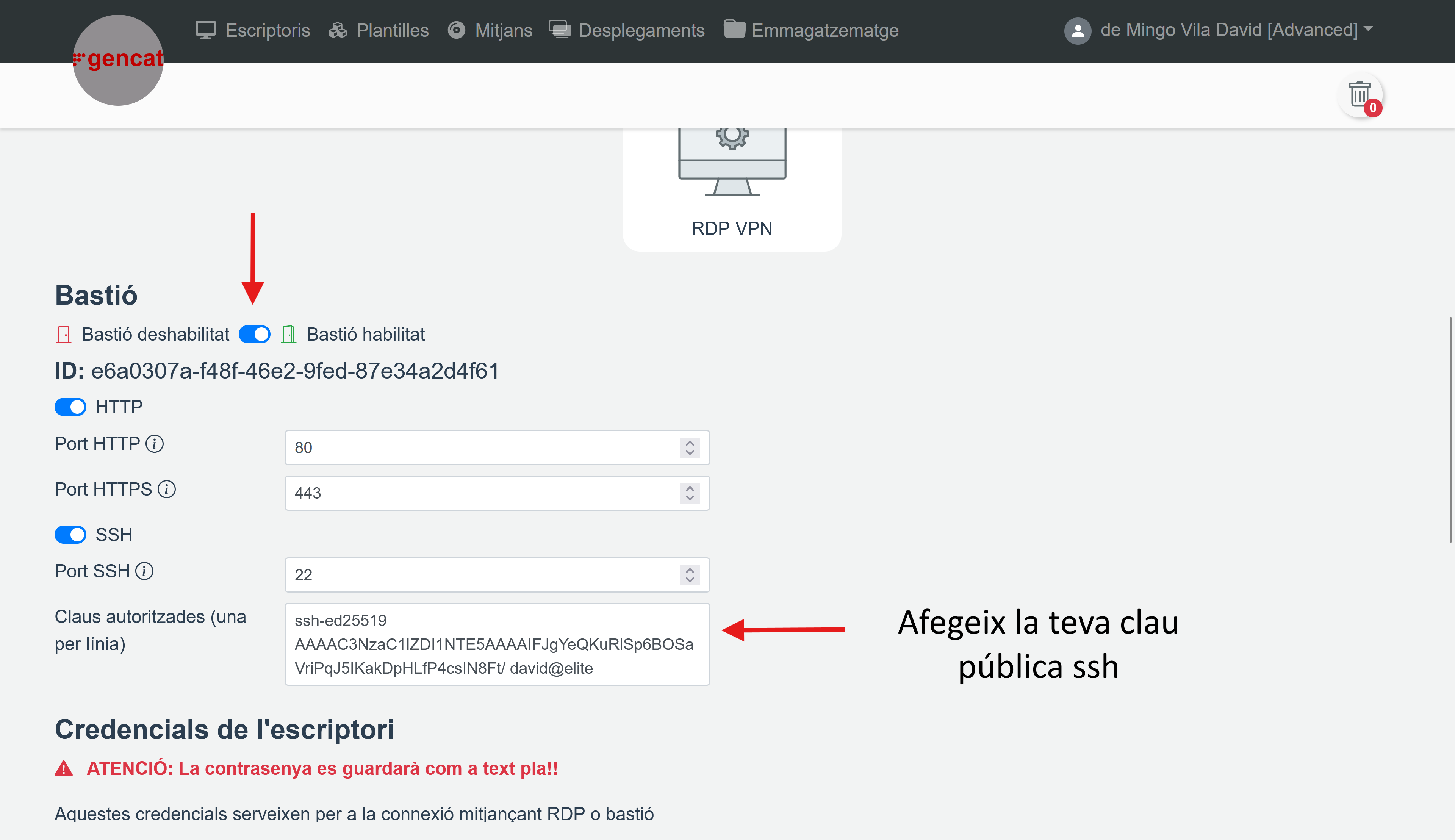
Two things happen there: you enable it, and you register the public key you will connect with.
Get yours the way SSH showed you:
> gc .\.ssh\id_ed25519.pub
ssh-ed25519 AAAAC3NzaC1lZDI1NTE5AAAAIFJgYeQKuRlSp6BOSaVriPqJ5IKakDpHLfP4csIN8Ft/ david@elite
Paste that in, save, and you get back a UUID:
e6a0307a-f48f-46e2-9fed-87e34a2d4f61
Which raises the obvious question. What is anyone supposed to do with that?
The UUID is the address
The desktop has no public name, so the bastion gives it one — and the UUID is it.
Press the bastion button in the desktops view:
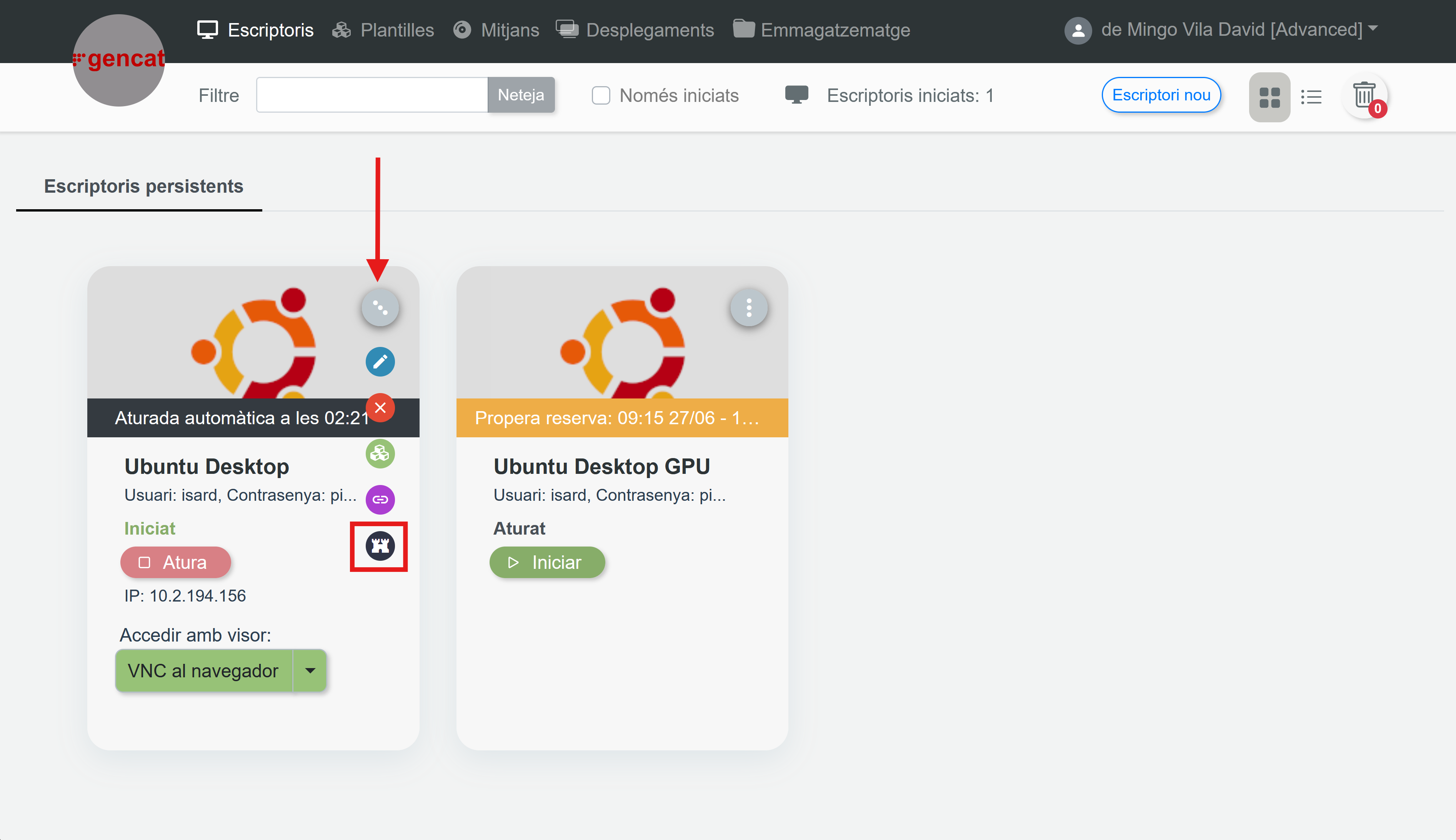
It shows you the UUID together with a URL per enabled protocol:
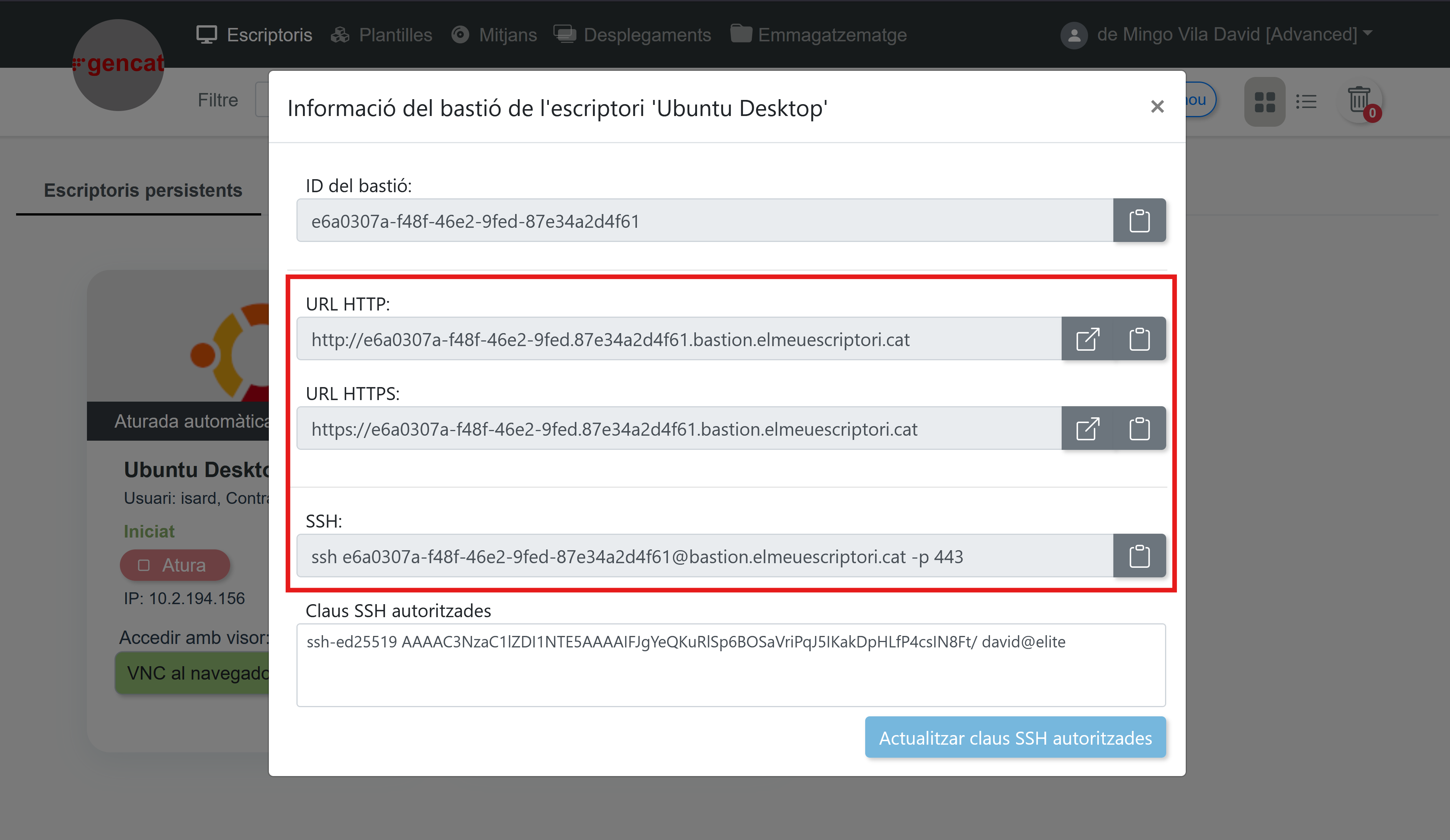
The shape is the same every time:
e6a0307a-f48f-46e2-9fed-87e34a2d4f61.bastion.elmeuescriptori.cat
That name resolves on the public internet, from anywhere, with no VPN.
http:// and https:// reach the desktop's port 80 and 443.
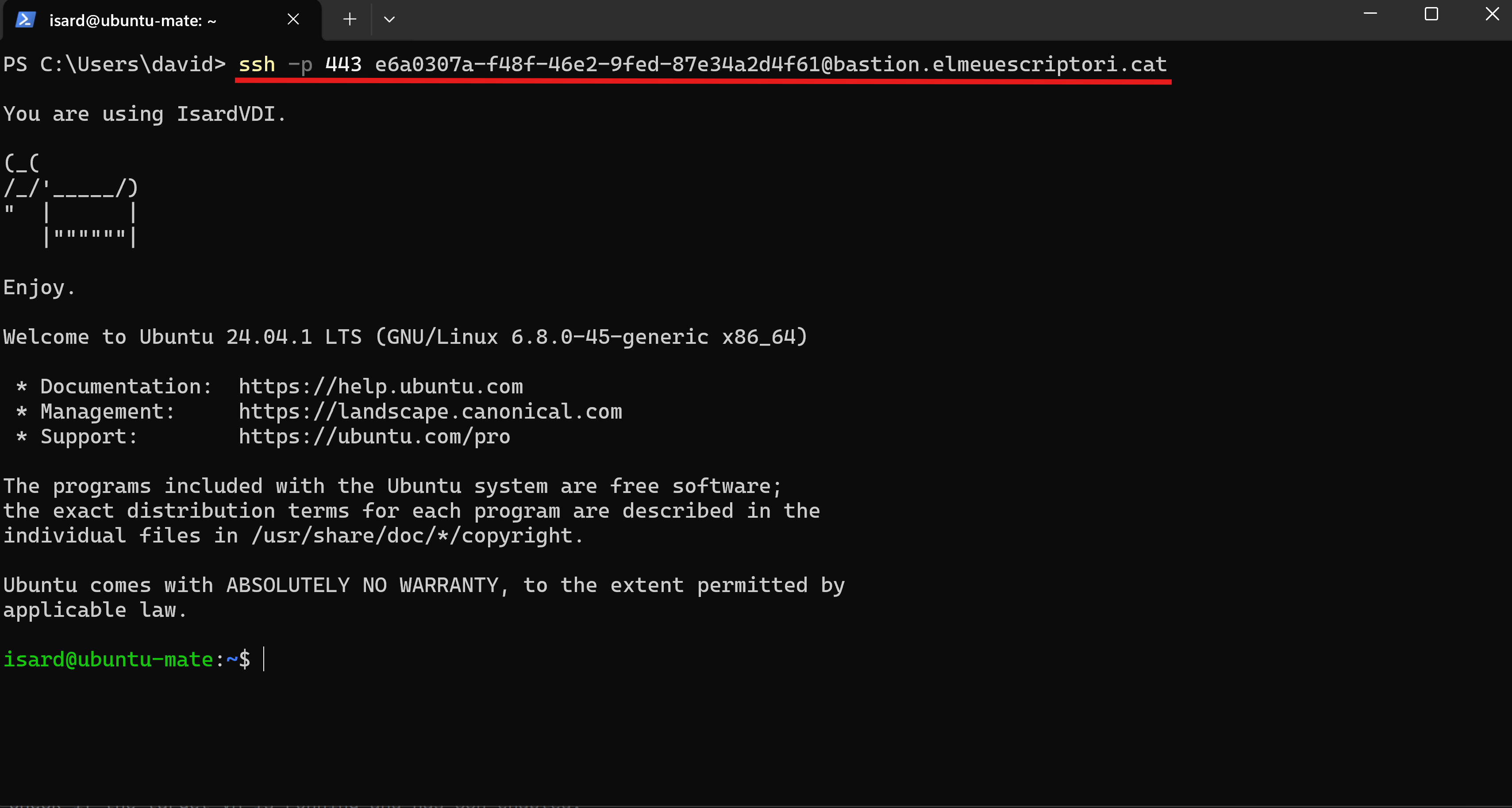
SSH is the odd one out, and it is worth reading twice: it runs on the Isard host, port 443, and the UUID is used as the SSH username.
That is not a mistake in the interface. There is one port open for a whole platform's worth of desktops, so what identifies your machine has to travel inside the connection rather than in the address — and the username field is where it fits.
isard ssh
Everything above is one command:
$ isard ssh box-1
✓ Resolved desktop: box-1 (state: Stopped)
✓ Start request sent for box-1
✓ box-1 is now Started
✓ SSH bastion ready for box-1
Connecting: ssh -o StrictHostKeyChecking=no ... -p 443 -i /Users/david/.ssh/id_ed25519
isard@box-1:~$
You never typed a UUID, never opened the edit form, never pasted a key.
Here is what it did, in order:
- Resolved the name —
box-1, or a close enough spelling of it. - Found your private key —
--identityif you passed one, then~/.ssh/id_ed25519, then~/.ssh/id_rsa. If you have none at all, it generates an ed25519 key rather than failing. - Started the desktop if it was stopped, and waited.
- Registered the matching public key with the desktop's bastion, which also enables it. Doing this twice is harmless — it checks before it writes.
- Connected to the Isard host on port 443, with the bastion UUID as the username.
Step 2 is the one worth knowing about: you do not need a key to get started.
$ isard ssh box-1
✓ Resolved desktop: box-1 (state: Stopped)
No SSH key found — generating /Users/david/.ssh/id_ed25519...
Generating public/private ed25519 key pair.
...
Generated SSH key: /Users/david/.ssh/id_ed25519
✓ Start request sent for box-1
✓ box-1 is now Started
✓ SSH bastion ready for box-1
Connecting: ssh -o StrictHostKeyChecking=no ... -p 443 -i /Users/david/.ssh/id_ed25519
isard@box-1:~$
The guest has to be listening
The bastion forwards a connection to port 22 of your machine — or to the SSH port you set on the form.
If nothing is listening there, this is what you get:
$ isard ssh box-1
✓ Resolved desktop: box-1 (state: Started)
✓ SSH bastion ready for box-1
Connecting: ssh -o StrictHostKeyChecking=no ... -p 443 -i /Users/david/.ssh/id_ed25519
Error connecting to target host: dial tcp 192.168.122.214:22: connect: connection refused
ssh exited 255 (auth/connection failed). Cached confirmation for 'box-1' cleared.
If ssh reported 'Connection refused', the desktop has no SSH server yet. Open it in the viewer (isard view box-1) and, in the guest:
...
Read that carefully, because it is the single most common thing to go wrong and it looks like a permissions problem.
connection refused means the bastion got there. It reached your machine and found nobody home on port 22.
A Server template runs an SSH server. A Desktop template usually does not, and a machine you installed yourself only does if you ticked the box during the install.
On a Linux desktop, from the viewer:
$ sudo apt install -y openssh-server
$ sudo systemctl enable ssh --now
That is SSH's lesson, and this page does not repeat it.
A bare machine, in one line
A desktop you installed yourself is missing more than sshd.
There is no SSH server, there may be no account matching what the bastion logs in as, and there is no SPICE agent — so the clipboard does not work either, which is the part that hurts, because you cannot paste in the command that would fix it.
So there is a command short enough to type by hand. In the desktop's own viewer:
$ curl -fsSL https://isard.xtec.dev/guest.sh | sudo sh -s isard mypassword
==> installing openssh-server
==> creating user 'isard'
==> installing spice-vdagent
==> done
It installs and enables the SSH server, creates the account with passwordless sudo, and installs spice-vdagent and qemu-guest-agent.
It handles both apt and dnf, and running it twice is safe — it skips whatever is already there.
On a Windows desktop the same job is a PowerShell one-liner, in an administrator window:
> iex (irm https://isard.xtec.dev/guest.ps1)
That installs the OpenSSH server, opens port 22 on the firewall, sets PowerShell as the SSH shell, and installs the spice-guest-tools.
Restart afterwards, because the clipboard does not start working until you do:
> Restart-Computer
The credentials it shows you once
The first time you isard ssh a given desktop, it stops and shows you something:
$ isard ssh box-1
✓ Resolved desktop: box-1 (state: Stopped)
Guest credentials for 'box-1':
  user:     isard
  password: pi****us
Use these credentials? [Y/n]
Half of the password, and a question.
This is not the key you connect with — it is the account the bastion logs into the guest with, and it lives in the desktop's own record on the platform.
If it does not match a real account inside the machine, the bastion authenticates to nothing and you get an error about attempted methods rather than a shell.
Answer Y and it stops asking. The desktop's id goes into ~/.config/isard/desktop-creds.json, which holds ids and nothing else — no passwords, just the set of machines you have already confirmed.
Answer n and it asks for new ones, and pushes them to the desktop:
$ isard ssh box-1 --user isard --password 'nova-contrasenya'
✓ Resolved desktop: box-1 (state: Started)
✓ Stop request sent for box-1
✓ box-1 is now Stopped
✓ Guest credentials updated for box-1
✓ Start request sent for box-1
✓ box-1 is now Started
✓ SSH bastion ready for box-1
Connecting: ssh -o StrictHostKeyChecking=no ... -p 443 -i /Users/david/.ssh/id_ed25519
isard@box-1:~$
Note the restart in the middle of that. Guest credentials, like authorized_keys, are applied at boot — so changing them costs a stop and a start, and isard ssh --password does both for you rather than leaving you to work out why nothing changed.
Publishing something
Ports 80 and 443 are the reason the bastion is more than a convenient SSH.
Install a web server:
$ isard ssh box-1 -- 'sudo apt update && sudo apt install -y nginx'
Write something recognisable on it:
$ isard ssh box-1 -- 'echo "<h1>Hola des de box-1</h1>" | sudo tee /var/www/html/index.html'
<h1>Hola des de box-1</h1>
And open the bastion's HTTP URL in any browser, on any machine, with no VPN:
http://e6a0307a-f48f-46e2-9fed-87e34a2d4f61.bastion.elmeuescriptori.cat/
That is a URL you can send to somebody.
TaskPublish a page
Serve a page from box-1 and open it from a browser that is not on the VPN.
Show the solution
$ isard ssh box-1 -- 'sudo apt update && sudo apt install -y nginx'
$ isard ssh box-1 -- 'echo "<h1>box-1</h1>" | sudo tee /var/www/html/index.html'
<h1>box-1</h1>

$ isard vpn down
Running: sudo /opt/homebrew/bin/wg-quick down /Users/david/.config/isard/isard-vpn.conf
...
VPN down.
Then the bastion's HTTP URL, from the platform's bastion button.
Taking the VPN down first is the point of the exercise. With the tunnel up you cannot tell which of the two routes answered you.
Running things without a shell
Every example above used the form from CLI:
$ isard ssh box-1 -- 'sudo apt install -y nginx'
The command after -- runs on the machine and the session is not interactive.
That is what makes the bastion a build target rather than a place you visit.
Copy a project over and run its tests:
$ tar czf - src tests | isard ssh box-1 -- 'tar xzf - -C /home/isard/work'
$ isard ssh box-1 -- 'cd work && uv run pytest -q'
........................                                        [100%]
24 passed in 1.83s
The exit code is the tests' exit code, so this works as a step in a script:
$ isard ssh box-1 -- 'cd work && uv run pytest -q' && echo "green"
VPN or bastion
Both reach the machine. They are not interchangeable.
| VPN | bastion | |
|---|---|---|
| ports | all of them | 22, 80, 443 |
| the other person needs | the tunnel and your config | a link |
| set up per desktop | tick one box at create time | enable it, register a key |
| set up on your machine | isard vpn up, needs sudo |
nothing |
| good for | working on the machine | showing what runs on it |
In practice you use both, and isard ssh is what you type either way.
Exercises
TaskFrom nothing
Create a fresh Ubuntu Desktop machine called bare, and get an SSH shell on it through the bastion.
Show the solution
$ isard create bare --template ubuntu-24-04-desktop --yes
...
✓ Desktop 'bare' created successfully!

$ isard start bare --wait
✓ Resolved desktop: bare (state: Stopped)
✓ bare → Starting
✓ bare is now Started

$ isard ssh bare
✓ Resolved desktop: bare (state: Started)
...
✓ SSH bastion ready for bare
...
Error connecting to target host: dial tcp 192.168.122.214:22: connect: connection refused
ssh exited 255 (auth/connection failed). Cached confirmation for 'bare' cleared.
If ssh reported 'Connection refused', the desktop has no SSH server yet. Open it in the viewer (isard view bare) and, in the guest:
...
A Desktop template has no SSH server, so that is the expected first answer.
Open the viewer and install one:
$ isard view bare
In the machine:
$ sudo apt install -y openssh-server
$ sudo systemctl enable ssh --now
Then, from your own terminal:
$ isard ssh bare
isard@bare:~$
If instead you get Permission denied (publickey), the key was registered while the machine was already running. isard stop bare && isard start bare and try again.
TaskRead the two errors
Say what each of these means and what fixes it:
connect: connection refusedPermission denied (publickey)
Show the solution
-
The bastion reached the machine and nothing was listening on port 22. Install and enable an SSH server inside the guest.
-
The bastion reached sshd and your key was not in
authorized_keysyet. Almost always because the key was registered after the machine booted — stop it and start it.
The reason they are worth telling apart is that both look like SSH does not work and neither is fixed by generating a new key, which is what everybody tries first.
TaskOne command, three machines
With box-1, box-2 and box-3 running, find out the kernel version of each without opening a single shell.
Show the solution
$ for n in 1 2 3; do
>   printf '%s: ' "box-$n"
>   isard ssh box-$n -- 'uname -r'
> done
box-1: 6.8.0-51-generic
box-2: 6.8.0-51-generic
box-3: 6.8.0-51-generic
The printf and the command's output end up interleaved correctly because everything isard says about matching and starting goes to stderr, not stdout.
TaskWhich route answered
box-1 has a Wireguard interface and the bastion enabled, and its web server answers on both.
How would you prove which one a given request used?
Show the solution
Take one of them away.
$ isard vpn down
Running: sudo /opt/homebrew/bin/wg-quick down /Users/david/.config/isard/isard-vpn.conf
...
VPN down.

$ curl -s -o /dev/null -w '%{http_code}\n' http://10.2.76.37
000

$ curl -s -o /dev/null -w '%{http_code}\n' \
    http://e6a0307a-f48f-46e2-9fed-87e34a2d4f61.bastion.elmeuescriptori.cat/
200
000 is curl failing to connect at all, which is the correct answer for a private address you are no longer on the network of.
The general habit is worth more than the exercise: when two things could be answering, turn one off.