Introduction
You have a machine. You cannot reach it.
That is not a mistake you made — it is the default, and it is worth understanding before you go looking for the setting that turns it off.
A desktop on Isard runs in a data center you have no route to.
It can reach out to the internet, because a router in front of it translates its addresses on the way. Nothing can reach in, because there is no address to reach in to.
For a lot of what you will do, that is fine: you open the viewer, you type, you learn something.
It stops being fine the moment the machine is a server — a web server you want to open in your own browser, a database you want to point a client at, a machine you want to SSH into from a terminal that is not inside a SPICE window.
There are three answers, and a desktop can hold all three at once:
| interface | what it gives you | who sets the address |
|---|---|---|
| Default | internet out, nothing in | Isard, by DHCP |
| Wireguard VPN | a fixed address you reach over a VPN | Isard, by DHCP |
| Personal | a private network between your own desktops | you, inside each machine |
This page is those three, plus the fourth answer — the bastion — which is Bastion and needs no VPN at all.
Default
Every desktop has this one and you cannot turn it off.
Inside the machine it is the first interface:
$ ip --brief addr
lo      UNKNOWN  127.0.0.1/8 ::1/128
enp1s0  UP       192.168.122.214/22 fe80::cc46:102:1f0f:c495/64
192.168.122.0/22 is a private range, handed out by DHCP, with DNS and a gateway behind a NAT router.
So this works:
$ sudo apt update && sudo apt install -y nginx
And so does this, from inside the machine:
$ curl -s localhost | head -n 4
<!DOCTYPE html>
<html>
<head>
<title>Welcome to nginx!</title>
But from your own laptop, 192.168.122.214 is not an address that means anything.
It is not even unique — the desktop next to yours has one from the same range.
Wireguard VPN
The second interface puts your machine on a network you can join.
Isard keeps a private network — 10.2.0.0/16 — assigns each desktop with this interface a fixed address on it, and gives your account a WireGuard configuration that connects your own computer to the same network.
Tick it when you create the desktop:
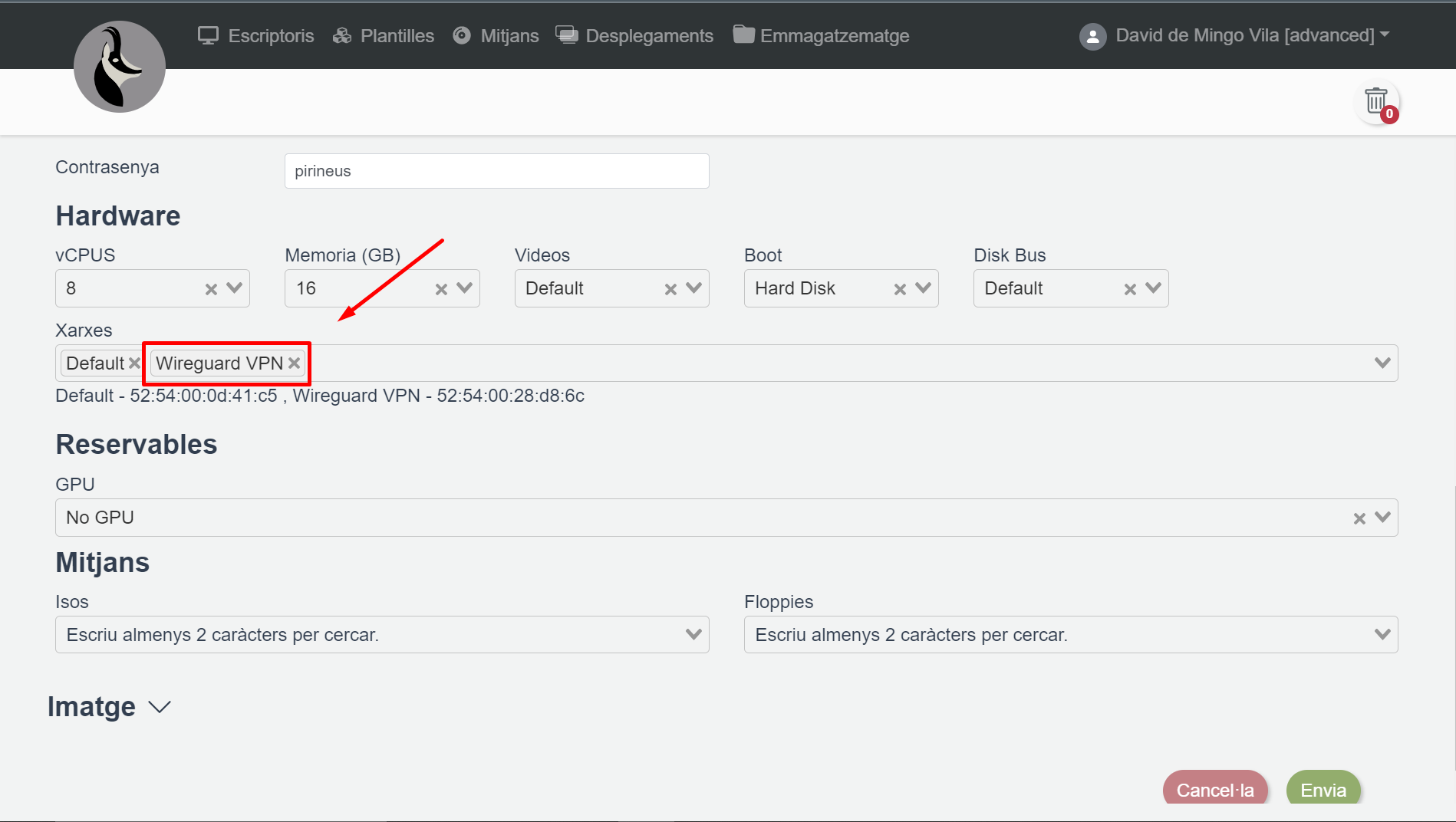
Inside the machine it shows up as a second interface:
$ ip --brief addr
lo      UNKNOWN  127.0.0.1/8 ::1/128
enp1s0  UP       192.168.122.214/22 fe80::cc46:102:1f0f:c495/64
enp2s0  UP       10.2.76.37/16 fe80::3198:1530:28f9:3bff/64
10.2.76.37 is the address you are going to use.
You can also read it off the platform without opening the machine:
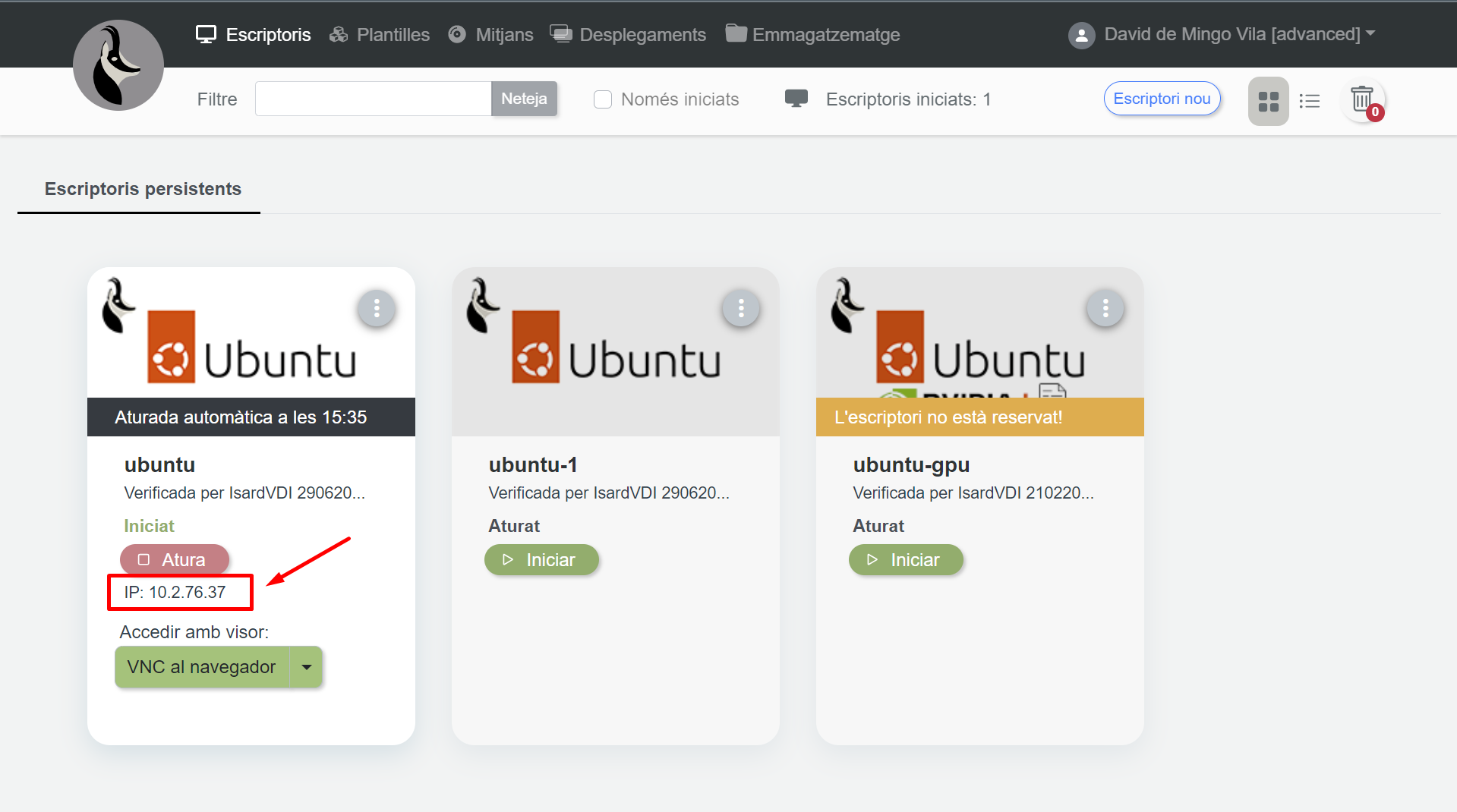
Or, which is faster:
$ isard list
NAME   STATE    IP          OS
box-1  Started  10.2.76.37  ubuntu
Your end of the tunnel
The desktop is on the network. You are not.
What you need is the configuration file for your end, and Isard generates one per account.
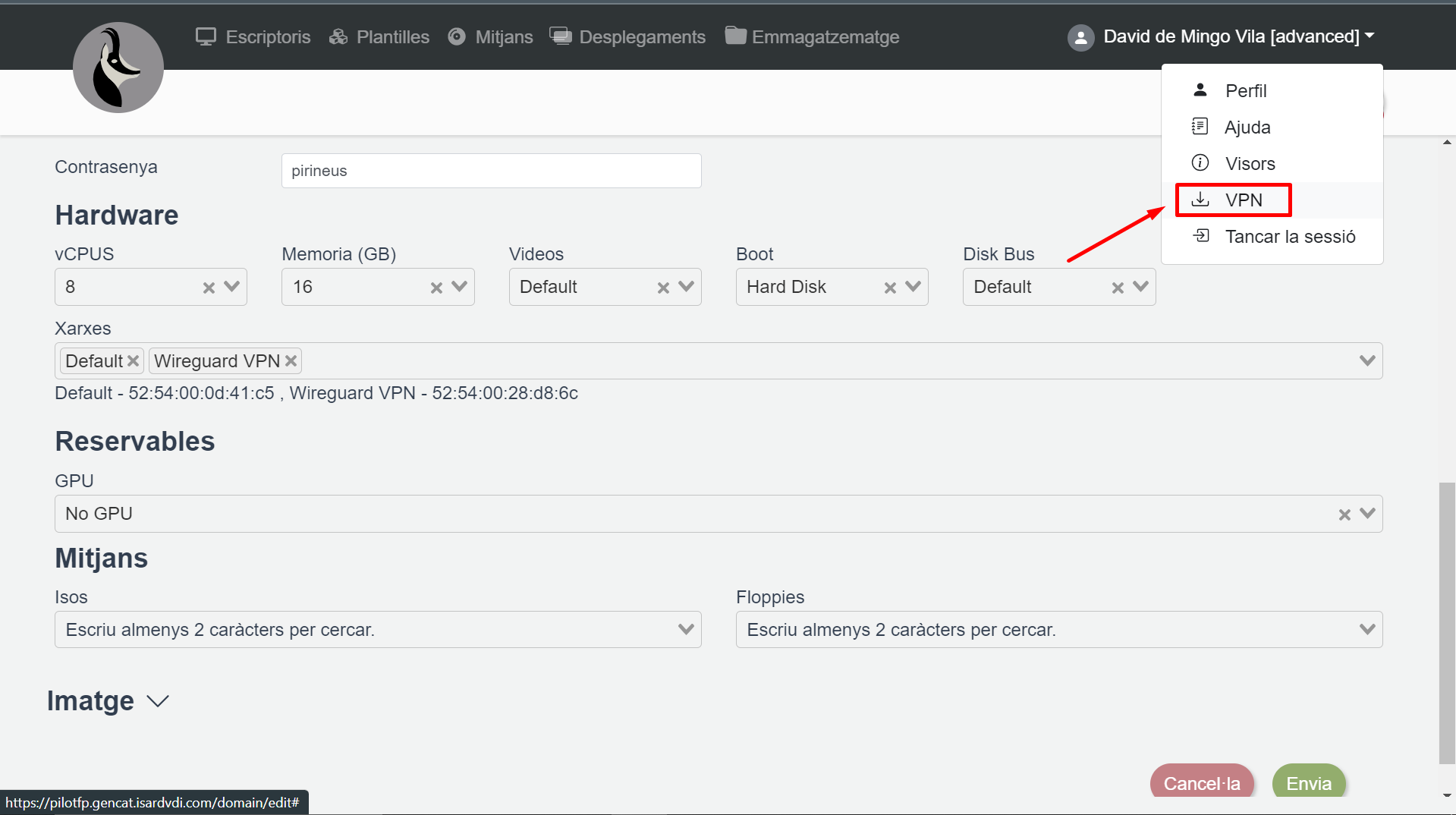
In the browser it is under your user's dropdown menu, as VPN, and it downloads isard-vpn.conf:
From the terminal it is one command:
$ isard vpn config
✓ WireGuard config retrieved
WireGuard config saved as: /Users/david/.config/isard/isard-vpn.conf (0600)
Your address in the VPN: 10.0.29.109/32
Routed through the tunnel: 10.2.0.0/16

Bring it up with: isard vpn up   (or: wg-quick up /Users/david/.config/isard/isard-vpn.conf)
0600, like the session files, and for a stronger reason: that file contains your private key.
Anyone holding it is on the desktop network as you.
Which is why it is not printed:
$ isard vpn config --show
✓ WireGuard config retrieved
[Interface]
PrivateKey = ...
Address = 10.0.29.109/32
DNS = 10.2.0.1

[Peer]
PublicKey = ...
AllowedIPs = 10.2.0.0/16
Endpoint = elmeuescriptori.gestioeducativa.gencat.cat:443
You have to ask for that with --show, and you should not do it in a room with a projector.
Bringing it up
$ isard vpn up
✓ WireGuard config retrieved
Running: sudo /opt/homebrew/bin/wg-quick up /Users/david/.config/isard/isard-vpn.conf
[#] wireguard-go utun
[+] Interface for isard-vpn is utun4
...
VPN up. Desktops are reachable at the IP shown by `isard list`.
It asks for sudo, because adding a network interface is not something an ordinary user does.
On Windows it runs wireguard.exe /installtunnelservice instead, which asks for administrator rights the same way.
Check it whenever you are not sure:
$ isard vpn status
VPN: up (utun4)
Config: /Users/david/.config/isard/isard-vpn.conf
And take it down when you are done:
$ isard vpn down
Running: sudo /opt/homebrew/bin/wg-quick down /Users/david/.config/isard/isard-vpn.conf
...
VPN down.
Both are safe to run twice — up on a live tunnel does nothing, and so does down on a dead one.
What you can do now
Ping it:
$ ping -c 2 10.2.76.37
PING 10.2.76.37 (10.2.76.37): 56 data bytes
64 bytes from 10.2.76.37: icmp_seq=0 ttl=63 time=47.412 ms
64 bytes from 10.2.76.37: icmp_seq=1 ttl=63 time=44.938 ms
Open the nginx you installed at the top of this page:
$ curl -s 10.2.76.37 | head -n 4
<!DOCTYPE html>
<html>
<head>
<title>Welcome to nginx!</title>
Or in your own browser, at http://10.2.76.37.
SSH straight in, with the ordinary ssh command and no bastion involved:
$ ssh isard@10.2.76.37
isard@box-1:~$
Every port, not a chosen few. That is the difference between this and the bastion.
A dev server on :5173, a PostgreSQL client on :5432, a remote debugger, Windows RDP on :3389 — all of it works, because as far as your machine is concerned the desktop is just a host on a network you are attached to.
TaskReach your own machine
Bring the tunnel up and open a web server running on box-1 from your own browser.
Show the solution
On box-1, through the viewer or the bastion:
$ sudo apt update && sudo apt install -y nginx
On your own machine:
$ isard vpn up
✓ WireGuard config retrieved
Running: sudo /opt/homebrew/bin/wg-quick up /Users/david/.config/isard/isard-vpn.conf
...
VPN up. Desktops are reachable at the IP shown by `isard list`.

$ isard list
NAME   STATE    IP          OS
box-1  Started  10.2.76.37  ubuntu
Then http://10.2.76.37 in the browser.
If it hangs, check three things in this order: the tunnel is up (isard vpn status), the machine is started (isard list), and nginx is actually running (systemctl status nginx).
Two of those three are the answer nine times out of ten.
Personal
The third interface is the one that solves a different problem.
Default and Wireguard both connect a desktop to something Isard runs.
Personal connects your desktops to each other, on a network nobody else is on — a switch with your machines plugged into it and nothing else.
There is one thing to understand about it and everything else follows: Isard assigns no addresses on a Personal network.
No DHCP, no gateway, no DNS. The interface comes up with nothing on it:
$ ip --brief addr
lo      UNKNOWN  127.0.0.1/8 ::1/128
enp1s0  UP       192.168.122.214/22 fe80::cc46:102:1f0f:c495/64
enp2s0  UP       10.2.127.123/16 fe80::3198:1530:28f9:3bff/64
enp3s0  UP
Three interfaces, and the third one is bare.
That is not a fault. It is the point: a Personal network is a piece of wire, and what runs over it is yours to decide.
Which is why it is what you want for an exercise about routing, about a firewall, about a DHCP server you write yourself — the network has no opinions to get in the way of yours.
Giving enp3s0 an address is a job for the guest, not for Isard, and on Ubuntu that is Netplan.
Which one do I want
Read the exercise, not the menu.
| the page asks you to | tick |
|---|---|
| follow a tutorial inside one machine | Default — you already have it |
| open a web server in your own browser | Wireguard VPN |
| SSH in from your own terminal | Wireguard VPN, or the bastion |
| publish something to someone who is not you | the bastion — Bastion |
| make two machines talk to each other | Personal, plus Wireguard so you can reach both |
| set the addresses yourself | Personal |
And tick Wireguard on everything, always.
It costs nothing when unused, and it is the interface you cannot add later without a restart.
Exercises
TaskRead the three interfaces
On a machine with all three, run ip --brief addr and say which line is which.
Show the solution
$ ip --brief addr
lo      UNKNOWN  127.0.0.1/8 ::1/128
enp1s0  UP       192.168.122.214/22 fe80::cc46:102:1f0f:c495/64
enp2s0  UP       10.2.127.123/16 fe80::3198:1530:28f9:3bff/64
enp3s0  UP
enp1s0— Default. A192.168.122.xaddress, internet through NAT.enp2s0— Wireguard VPN. A10.2.x.xaddress, reachable from you with the tunnel up.enp3s0— Personal. No address at all, because nothing assigns one.
The order is the order the interfaces were ticked on the form, which is why the tick order is worth keeping the same on every machine in an exercise.
TaskUp, down, up
Bring the tunnel up, check the status, ping a desktop, take it down, and ping again.
Show the solution
$ isard vpn up
✓ WireGuard config retrieved
Running: sudo /opt/homebrew/bin/wg-quick up /Users/david/.config/isard/isard-vpn.conf
...
VPN up. Desktops are reachable at the IP shown by `isard list`.

$ isard vpn status
VPN: up (utun4)
Config: /Users/david/.config/isard/isard-vpn.conf

$ ping -c 1 10.2.76.37
64 bytes from 10.2.76.37: icmp_seq=0 ttl=63 time=46.902 ms

$ isard vpn down
Running: sudo /opt/homebrew/bin/wg-quick down /Users/david/.config/isard/isard-vpn.conf
...
VPN down.

$ ping -c 1 10.2.76.37
Request timeout for icmp_seq 0
The timeout is the correct answer to the last command, and it is worth seeing once.
An address on a private network is not unreachable because something is broken. It is unreachable because you are not on that network.
TaskTwo machines, one tunnel
With box-1 and box-2 both running and both on Wireguard, install nginx on each and check both from your own browser.
Then change the page on one of them so you can tell them apart.
Show the solution
$ isard list
NAME   STATE    IP          OS
box-1  Started  10.2.76.37  ubuntu
box-2  Started  10.2.76.41  ubuntu

$ isard ssh box-1 -- 'sudo apt update && sudo apt install -y nginx'
$ isard ssh box-2 -- 'sudo apt update && sudo apt install -y nginx'
$ isard ssh box-2 -- 'echo "<h1>box-2</h1>" | sudo tee /var/www/html/index.html'
<h1>box-2</h1>
Then http://10.2.76.37 and http://10.2.76.41.
Two addresses on one tunnel, and nothing was configured per machine to make that work.
TaskWhat the tunnel does not carry
With the tunnel up, look up what your public IP address is.
Is it the Generalitat's?
Show the solution
$ curl -s https://api.ipify.org
88.11.42.7
It is your own — whatever your home or school connection has.
AllowedIPs = 10.2.0.0/16 means the tunnel carries traffic to Isard's desktop network and nothing else. A split tunnel is not a way to appear to be somewhere else, and this is not the tool for that.